
Introducing Alerts in Incendium
Stop finding out too late
Most businesses find out something has gone wrong days after it happened. Checkout breaks on a Friday night, a lead form stops submitting, a campaign stops spending, organic traffic quietly drops off, and nobody notices until Monday's numbers look off.
The good news gets missed too. A product suddenly takes off, enquiries jump after an event, or a new channel starts converting, and by the time you spot it the moment has passed.
The data to catch all of this is already sitting in Incendium. The problem is you have to go and look for it. This is why we built Alerts, which does the looking for you.
What are Alerts?
Alerts let you tell Incendium what matters to your business, and get an email the moment it happens. They work with any metric in Incendium, and they're not just for bad news. You can flag a drop in revenue just as easily as a spike in new customers.
Like everything in Incendium, Alerts are built around three ideas: better data, better decisions and faster action.
Better data: alerts you can trust
An alert is only useful if it's right. Get too many false alarms and you start ignoring them, which defeats the point.
Alerts run on the same data you already use in Incendium, so the numbers in the email match the numbers in your dashboard. And you can alert on any metric, not a fixed list of presets.
Conditions that cut out the noise
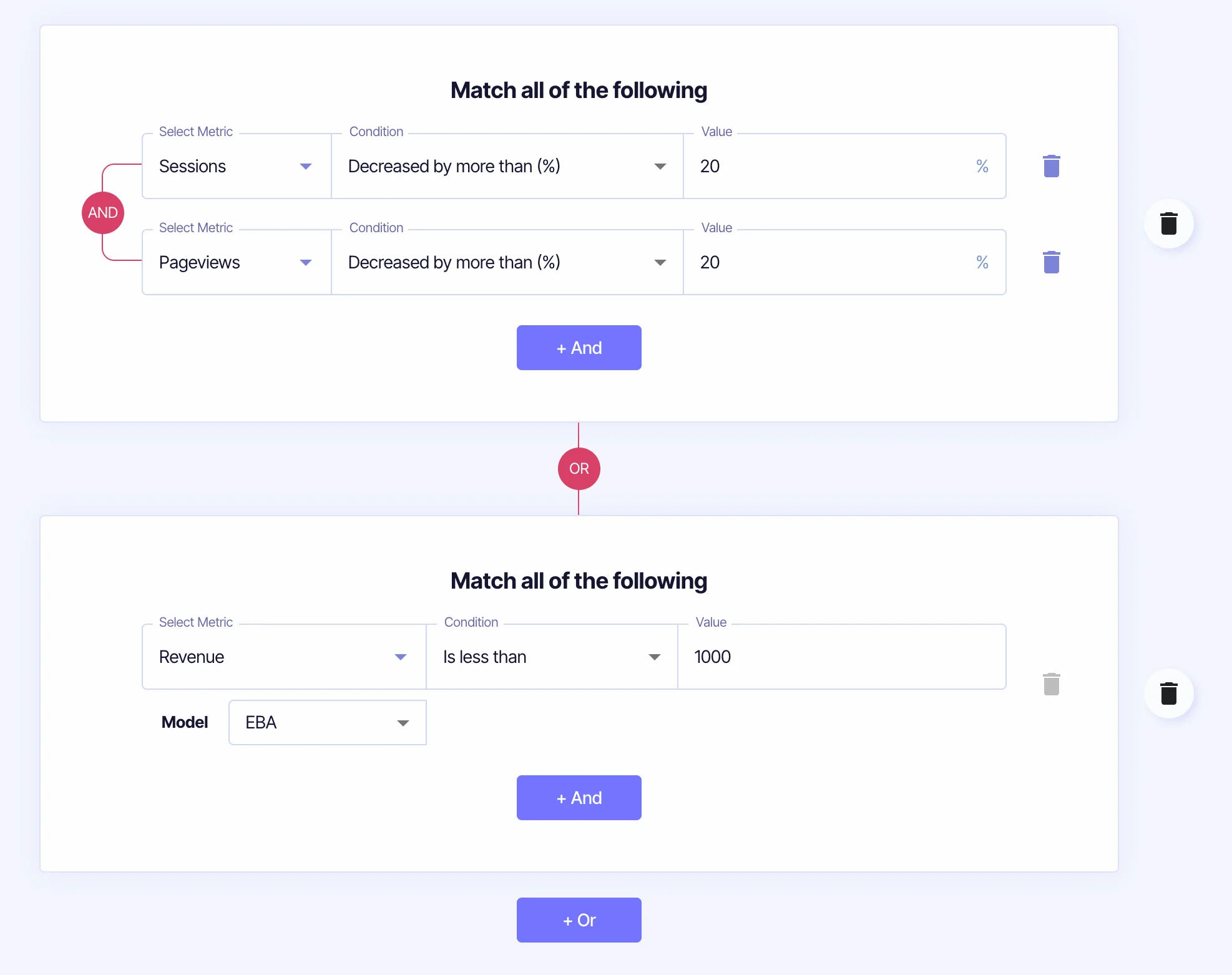
You build an alert from condition blocks. Inside a block, every condition has to be true for it to fire. Between blocks, only one needs to be true. So you can write rules like:
[Sessions decreased by 20% AND pageviews decreased by 20%] OR Revenue is less than $1,000
The first block catches a genuine traffic drop, not just one metric wobbling on its own. The second is a hard floor on revenue, whatever traffic is doing. Either one is enough to send the alert.
You can use fixed thresholds ("revenue is less than $1,000") or relative changes ("sessions decreased by 20%").
Fair comparisons
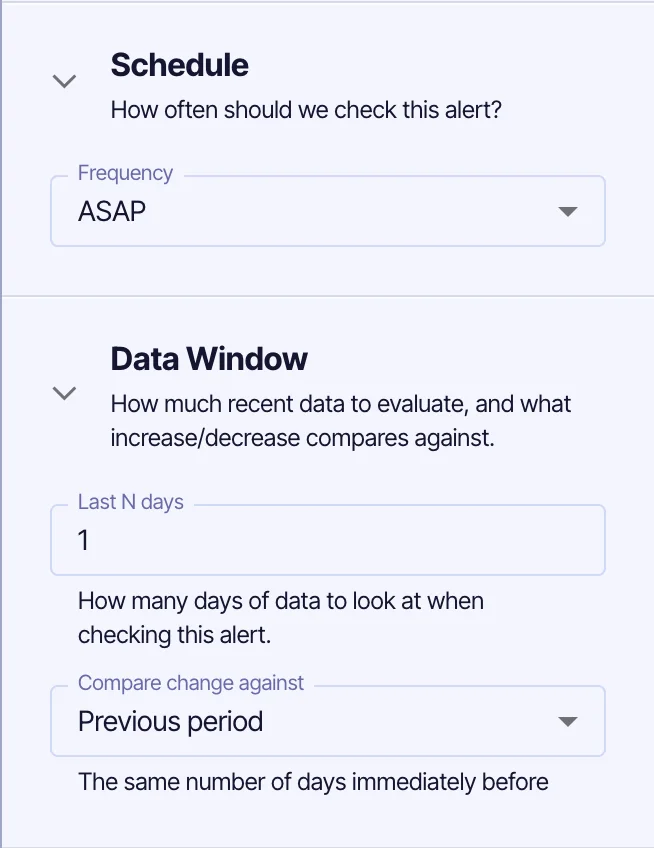
The data window sets how much recent data each check looks at, for example the last 7 days. When you use "increased by" or "decreased by" conditions, you also choose what to compare against:
- Previous period: the last 7 days vs the 7 days before
- Same days last month
- Same days last year, handy for seasonal businesses where comparing to last week would set off false alarms
Picking the right comparison is the difference between an alert that means something and one you learn to ignore.
Better decisions: context, not just a warning
An email telling you revenue dropped tells you something is wrong. It doesn't tell you why, or what to do about it.
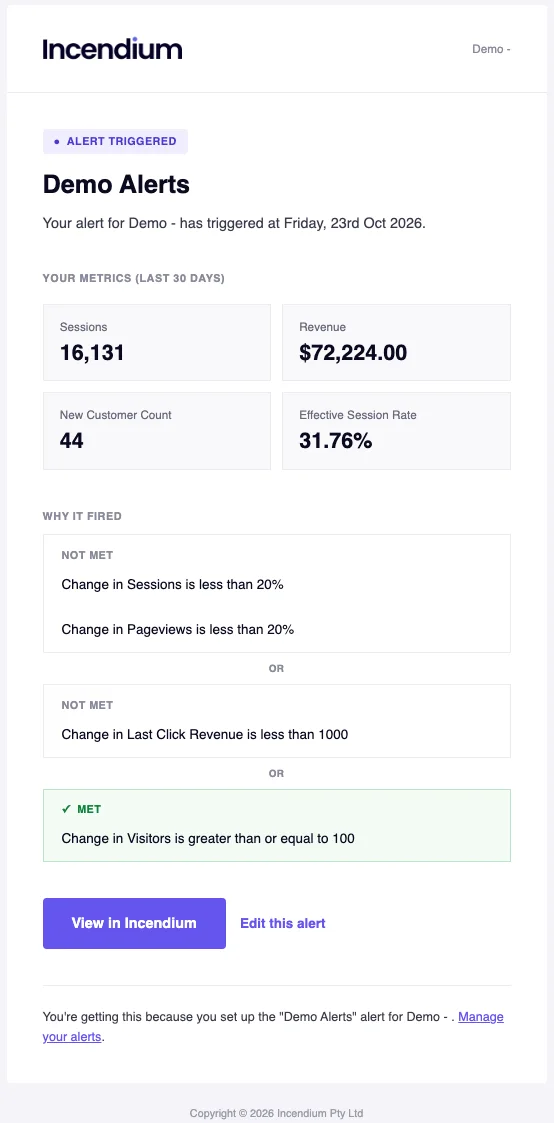
That's what extra data is for. You can add any Incendium metrics to the alert email, so it arrives with the context you need. For example: if revenue decreases by 50%, show me the last 30 days of revenue, sessions and new customers.
Now you can see straight away whether traffic fell, conversion fell, or both, and start working out the cause before you even log in.
Faster action: the right people, at the right time
Data is only worth something if someone acts on it while it still matters. Alerts make sure the right person hears about it, as soon as they need to.
Check as often as you need
Choose how often Incendium checks your conditions:
- ASAP, for things you need to know about straight away
- Daily
- Weekly
- Monthly
Send it to whoever needs to act
Add as many email addresses as you like. Send checkout alerts to your developer, traffic alerts to your agency, visitor alerts to your sales team, and revenue alerts to yourself.
Ways to use Alerts
Here are a few alerts worth setting up on day one.
Catch problems early
- Broken checkout: orders decreased by 50% vs previous period, checked ASAP. If traffic is normal but orders fall off a cliff, something is usually broken.
- Traffic drop: sessions decreased by 25% AND pageviews decreased by 25%, checked daily. Requiring both cuts out the noise.
- Revenue floor: revenue is less than your normal quiet-day number, checked daily. Add sessions, orders and conversion rate as extra data so you can see straight away where it fell.
- Conversion rate slipping: conversion rate decreased by 20% vs same days last month, checked weekly. Good for spotting slow leaks after a site change.
Spot wins while they're happening
- A good day: revenue increased by 50% vs previous period. Find out what's working while you can still double down on it.
- New customer growth: new customers increased by 30% vs same days last year, checked weekly.
- Campaign take-off: sessions from a channel increased by 100%, so you know when a promo, email or bit of press is landing.
For B2B and lead generation
Alerts aren't just for online stores. If your site's job is to generate leads rather than sales, the same rules apply to your visitors (what Incendium calls leads).
- Form problems: visitors decreased by 50% vs previous period while sessions are steady, checked ASAP. Usually a broken form or a CRM integration that's stopped syncing.
- Pipeline slowdown: visitors are less than your normal weekly number, checked weekly, with visitors by channel as extra data so you can see which source dried up.
- Paid traffic quality: sessions from paid increased by 30% AND visitors decreased by 20%, a sign you're paying for traffic that isn't converting.
- Sales team heads-up: visitors increased by 50% after a webinar, campaign or bit of press, sent straight to the sales team so they're ready to follow up.
Keep everyone in the loop
- Weekly or monthly check-ins: a simple alert that sends key metrics to the team or to a client, without anyone logging in.
- Agencies: set alerts on client stores and send them to your account managers, so you raise issues before the client does.
- Seasonal sanity checks: compare against same days last year during sale periods, when week-on-week comparisons are meaningless.
Get started
Alerts are live now for all Incendium customers. To set up your first one:
- Go to Alerts in your Incendium dashboard
- Add your conditions
- Pick a schedule and data window
- Add any extra data you want in the email
- Add who should receive it, then save
It takes a couple of minutes, and then you can stop checking the dashboard just in case.
If you're not sure what to set up first, start with a revenue floor and a traffic drop alert. Between them they'll catch most of the things you'd want to know about.
- Last Updated
- Category
- New Products