
Data Manager
Upload historical sales, margins and other supported business data.
Updated 9 August 2026Why add business data
Data Manager uploads supported CSV data such as historical sales and profit margins. Historical context makes reports useful sooner; margin data moves analysis beyond revenue and towards the value the business actually retains.
This matters when two campaigns generate similar revenue but very different profitability, or when the team needs a baseline that predates the Incendium installation.
Prepare the file
- Use a CSV file and retain the original source export for reconciliation.
- Choose the supported data type that matches the file.
- Keep date, currency, identifier and numeric formats consistent.
- Use stable order, customer or product identifiers where the selected import requires them.
- Remove unnecessary personal or sensitive fields.
- Do not upload the same extract twice unless the import workflow is designed to replace it.
Upload and monitor
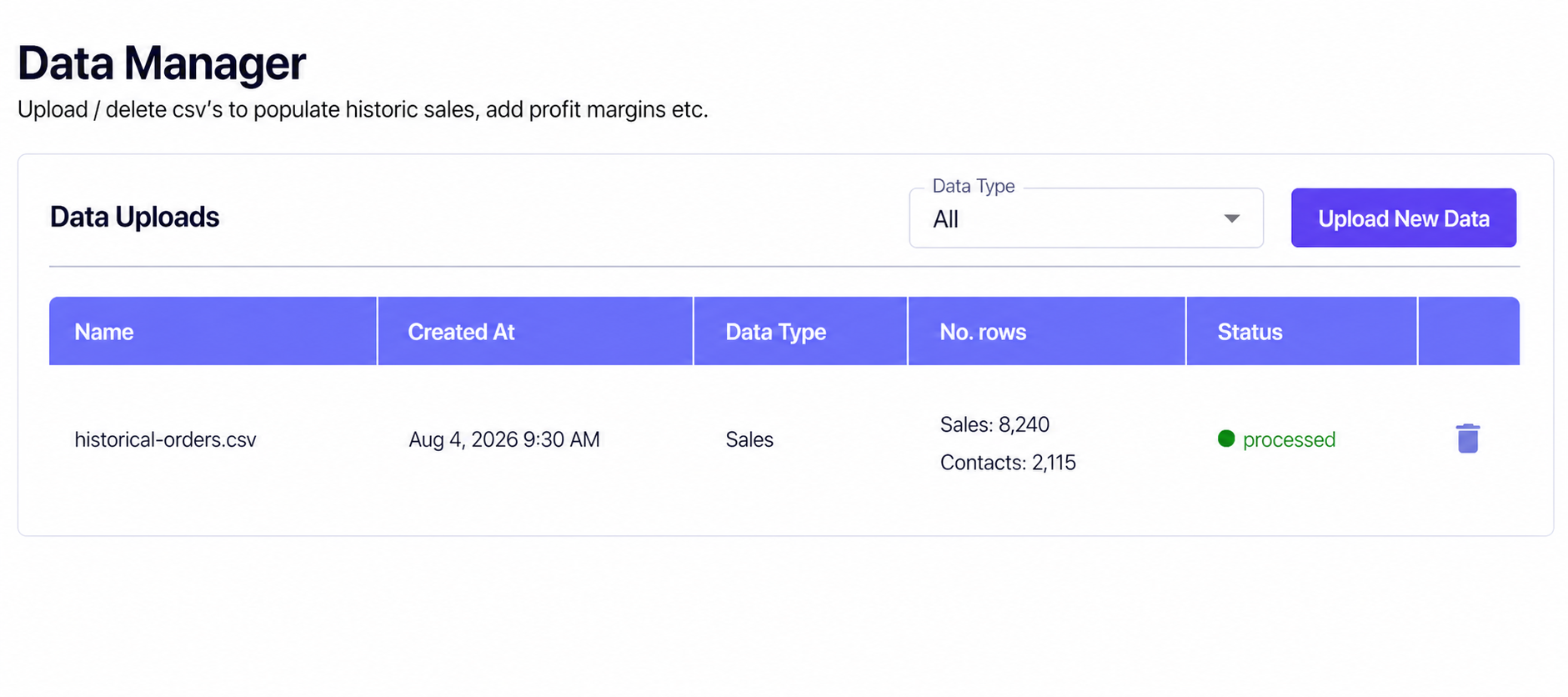
Open Data Manager
Go to Settings → Connections → Data Manager and choose Upload New Data.
Select the data type
Choose the type before supplying the CSV so Incendium can apply the appropriate validation and mapping.
Complete the upload
Follow the field and mapping instructions shown for that data type. Resolve reported validation errors rather than changing source values blindly.
Wait for processing
Use the status and row counts in Data Uploads to confirm that processing completed.
Reconcile the result
Compare a known period, a sample of identifiers and total value with the source export. If a file is wrong, record what was uploaded before deleting or replacing it so downstream changes remain explainable.
An import can describe historical orders or margins, but it cannot recreate the website journeys that were never tracked. Treat early visit-based ratios accordingly.