
Subdomains
Create and manage the DNS records used by Incendium subdomains.
Updated 9 August 2026What an Incendium subdomain does
A custom subdomain lets Incendium publish or deliver project resources beneath a domain the organisation controls. It can support landing pages, split campaigns, smart links and customer-domain tracking delivery.
For tracking, a URL such as collect.example-store.com creates a more first-party collection path and reduces exposure to generic third-party blocker lists. That can preserve more of the behavioural evidence used for reporting, attribution and advertising signals.
Create the subdomain
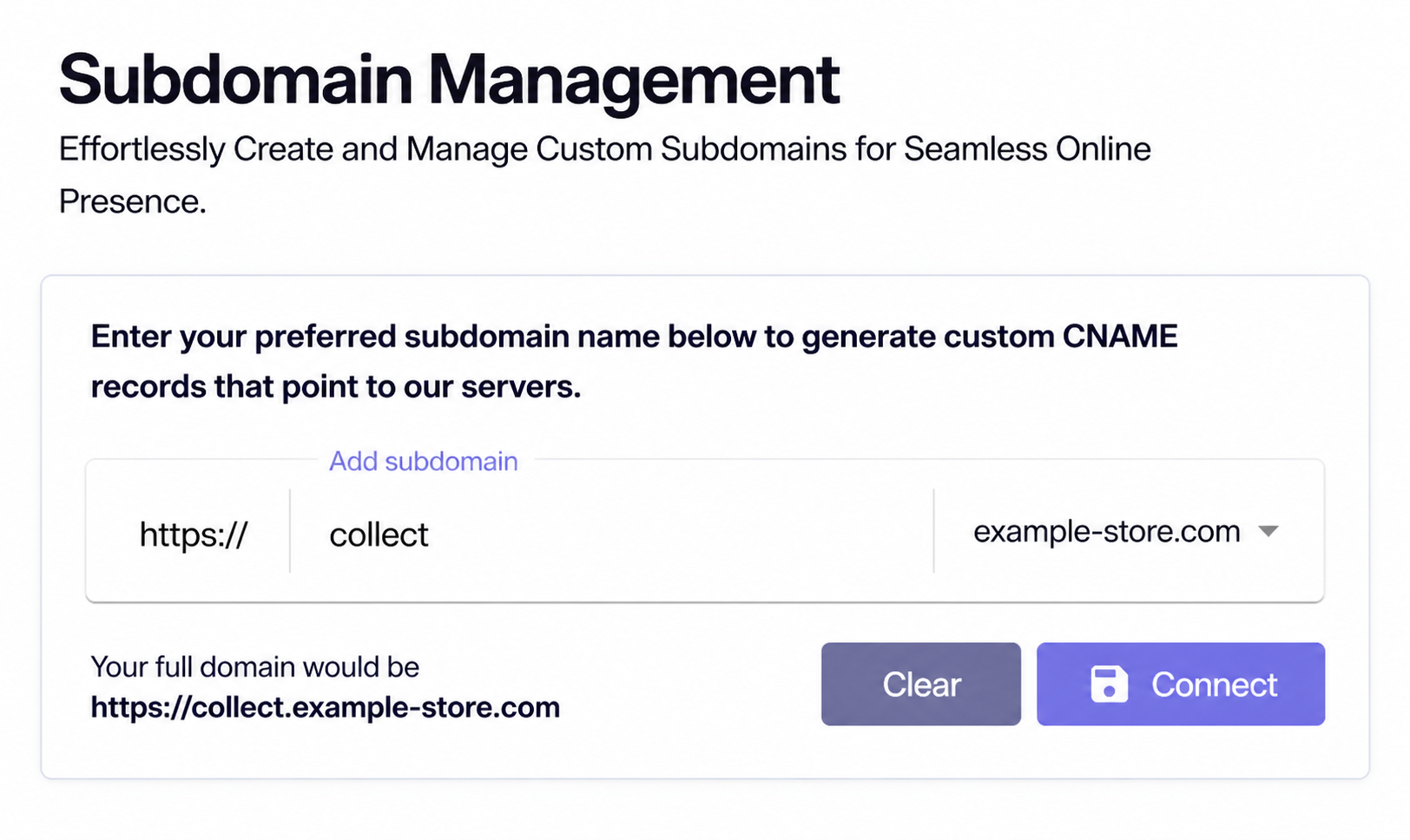
Choose a clear label
Open Settings → Connections → Subdomains and enter a label such as collect or pages. Choose a name that reflects its purpose and is not already in use.
Connect the subdomain
Select the organisation’s domain and choose Connect. Incendium generates the DNS records required for ownership validation and delivery.
Add the Certificate CNAME
At the DNS provider, add the displayed key and value exactly. This validates domain ownership and allows the SSL certificate to be created.
Add the Subdomain CNAME
Add the delivery CNAME shown by Incendium. Do not substitute a copied value from another project or subdomain.
Wait for approval
DNS and certificate validation are not always immediate. Return to the subdomain card and wait until the required records show as approved or live.
DNS checks
- The host/key is entered in the format expected by the DNS provider.
- The provider has not appended the root domain twice.
- Proxying is disabled if the displayed instructions require a direct CNAME.
- Certificate and delivery records have not been swapped.
- No older record already claims the same subdomain.
- The live HTTPS URL is tested after approval.
A customer-domain URL can reduce blocking caused by generic third-party lists. It does not override browser controls, network policy or the visitor’s consent choice.