
Location Tags
Classify Locations so related parts of the website can be analysed together.
Updated 9 August 2026Locations describe pages; tags describe their role
A Location defines which URLs belong together. A Location Tag groups one or more of those Locations by purpose, so related areas can be analysed together even when their URL structures differ.
For example, several product templates can share the Product Page tag. The individual Locations remain available for detailed analysis, while the tag supplies a consistent product-page view across the site.
Use custom and Reserved Tags deliberately
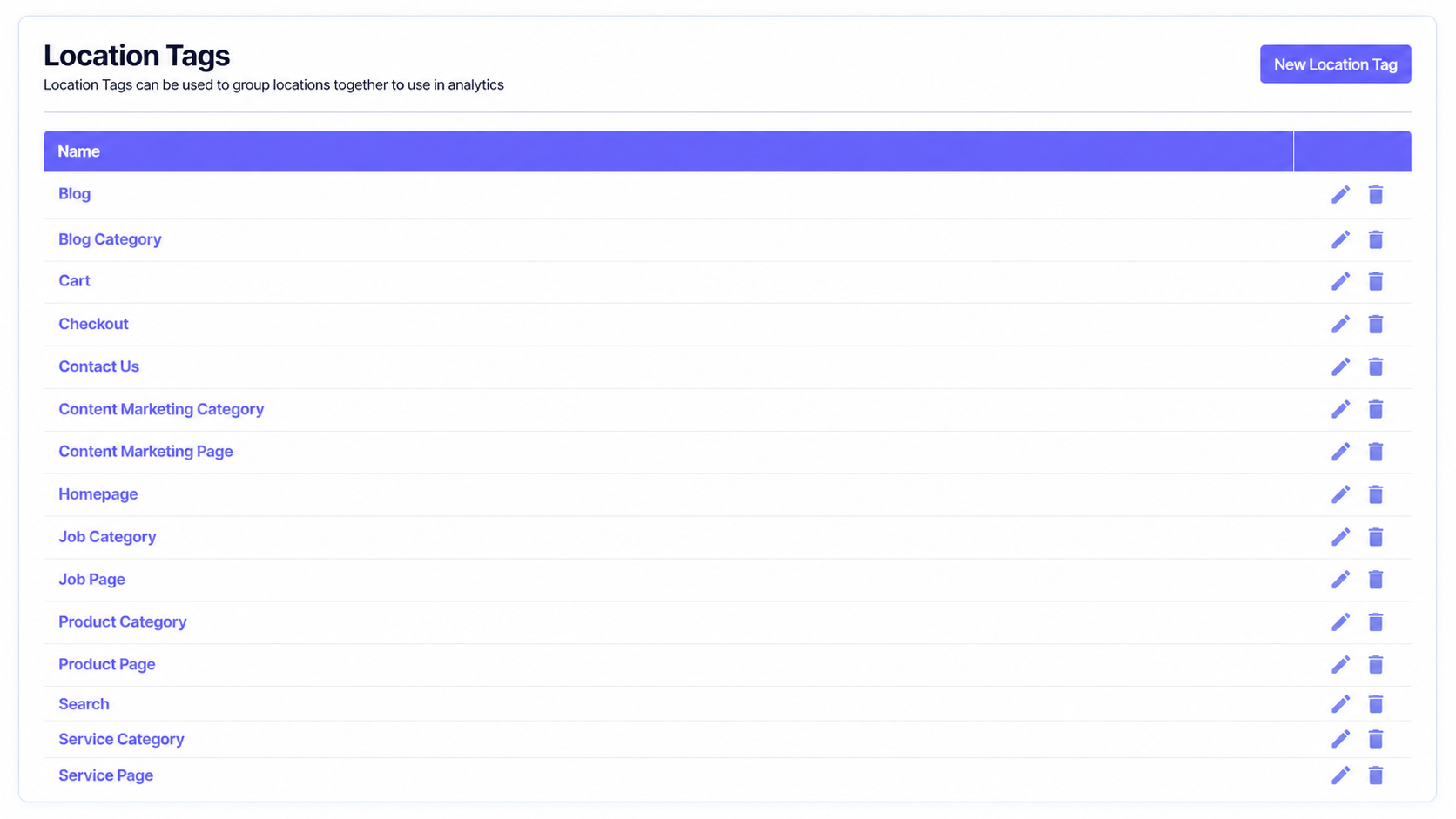
Create a business-specific grouping when several Locations need to be compared together in analytics.
Use Incendium's recognised page types where they apply. They can unlock specialist reporting and page-item tagging such as product name and price.
Do not replace an accurate Reserved Tag with a near-duplicate custom name. A consistent vocabulary makes reports easier to understand and preserves the product-specific behaviour attached to Reserved Tags.
Create and assign a tag
Create the tag
Open Setup & Measurement → Location Tags, choose New Location Tag, and enter a concise name that describes a durable page role.
Assign it to Locations
Add the tag while creating a Location, or edit an existing Location from the Locations list. A Location can use the tags needed to describe it accurately.
Check the combined view
Open the relevant analysis and confirm that the tag brings together the expected Locations without unrelated pages.
Design a useful tag structure
- Prefer page roles such as Product Page or Service Category over temporary campaign names.
- Use the same singular/plural and naming style throughout the project.
- Keep tags broad enough to combine useful data but specific enough to answer a question.
- Review tags when new templates or sections launch.
- Before deleting a tag, check the Locations and reports that depend on it.
Tags provide a shared layer between site structure and reporting. When the taxonomy stays stable, teams can compare performance over time even as individual URLs, products and campaigns change.