
Locations
Group related website pages into meaningful areas used throughout Incendium.
Updated 9 August 2026Why Locations matter
Locations turn raw website URLs into business areas that people can recognise: product pages, service pages, checkout, content hubs or any other meaningful part of the site. Incendium then uses those definitions throughout reporting, funnels, conversions and interaction analysis.
Ecommerce projects receive a useful structure automatically, but it should still be reviewed. Custom themes, campaign paths and new sections can introduce pages that the initial setup could not anticipate. The same Locations workflow is used for ecommerce and B2B projects; only the starting point differs.
A stable Location definition lets reports compare like with like even when individual URLs change. It also gives people and optimisation systems clearer evidence about which parts of the site create valuable behaviour.
Create or edit a Location
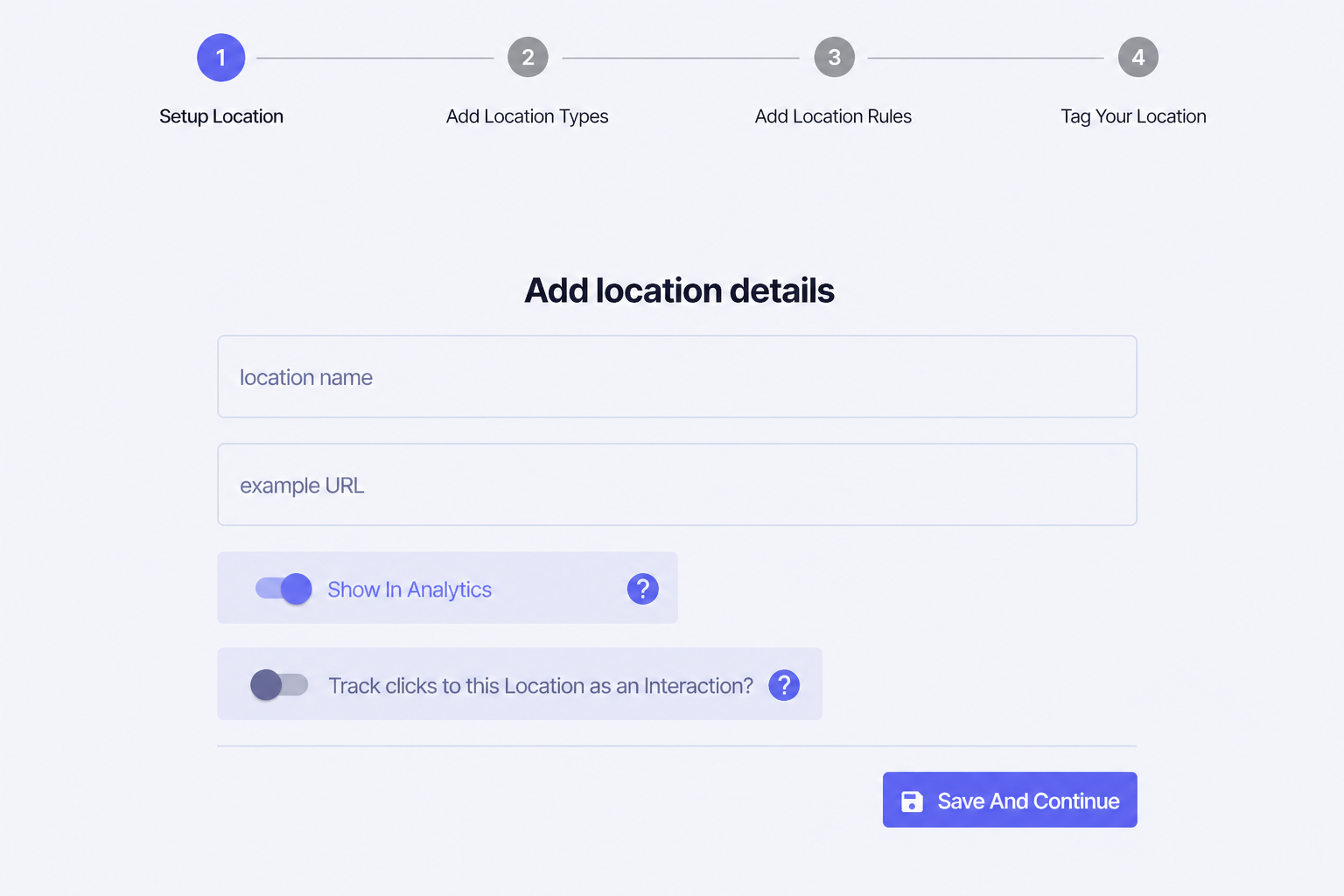
Set up the Location
Open Setup & Measurement → Locations, choose New Location, and give it a short business-facing name. Supply a real example URL so the rule builder can identify its parts.
Choose its Location Types
Add the tags that describe what the Location represents. Reserved Tags can unlock specialist reports and additional item-tagging options.
Add matching rules
Build rules from the path, hostname, query string or another stable URL component. Use the matched-page preview before saving.
Tag page items when needed
For supported Location types, train Incendium to recognise useful page items such as a product name or price. Only tag data that is consistently present on that template.
Build rules that survive site changes
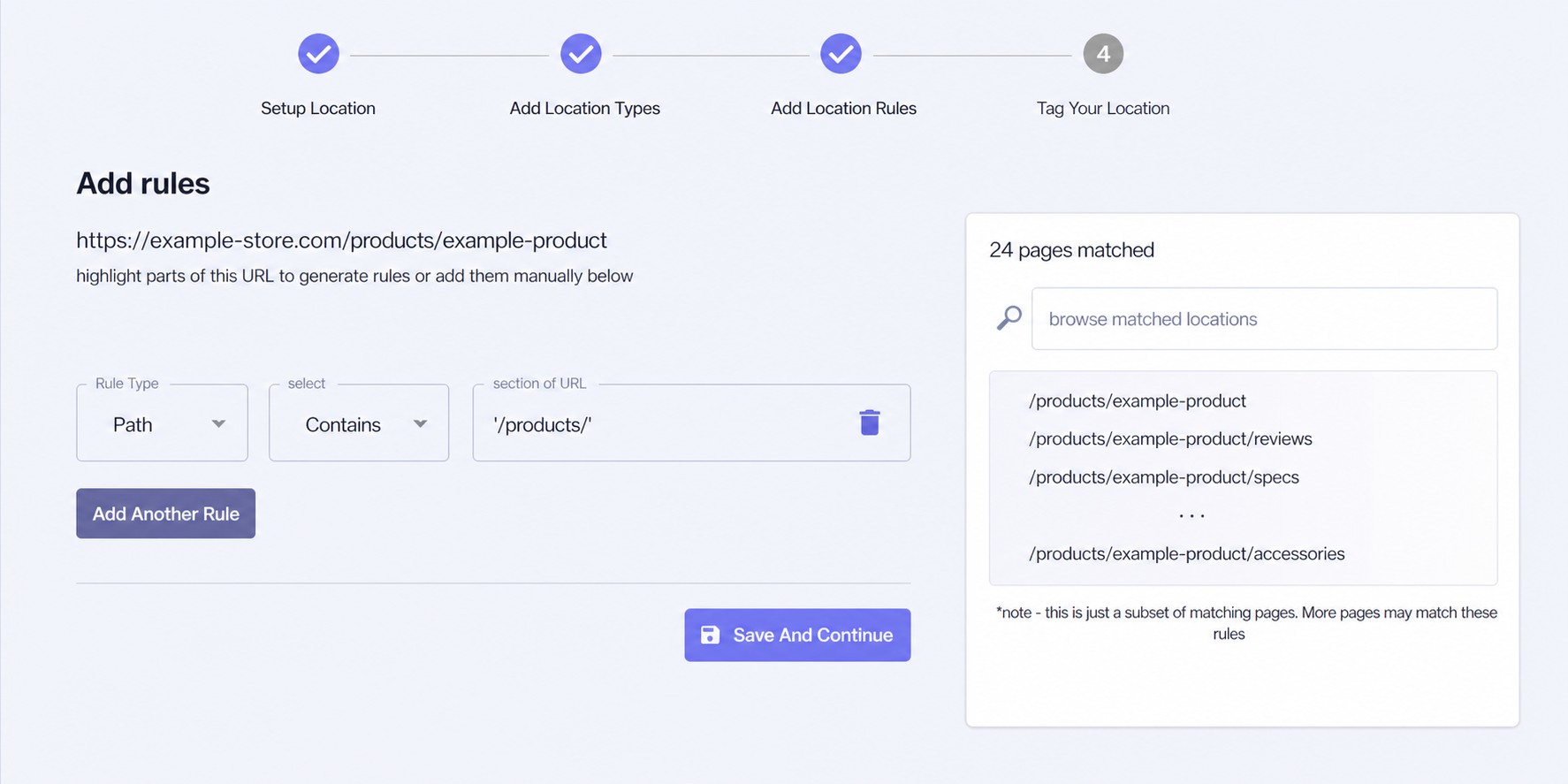
- Prefer stable path patterns over campaign parameters or editable page titles.
- Use Equal for one exact destination and Contains for a repeatable section.
- Use regular expressions only when simpler rules cannot describe the template clearly.
- Combine rules carefully and check both pages that should match and pages that should not.
- Keep overlapping Locations intentional; otherwise reports may group a page more broadly than expected.
Understand the two Location controls
Controls whether this Location is available as a grouping in Incendium analytics. Leave it enabled for Locations that users need to compare in reports. Turn it off when the Location is useful for setup or recognition but would add noise to analytical Location lists.
Automatically records clicks from other pages into this Location as an Interaction. For example, a click into a Product Category Location can be recorded as a Product Category Click, without separately tagging every link that leads there.
The Interaction option is most useful when reaching the Location represents a durable business action. Avoid enabling it for every destination: a smaller set of meaningful interactions is easier to interpret in journeys, attribution and optimisation.
Show In Analytics governs whether the Location is presented as an analytical grouping. Track clicks… creates an Interaction when visitors navigate to it. Enabling one does not imply that the other should also be enabled.
Train Conversions inside a Location
Locations define where an outcome can happen. The reusable Conversion or Interaction is managed on the Conversions page, but its website trigger is trained inside Tag Your Location → Conversions. You can attach one definition to several Locations and configure the relevant trigger for each page type.
Find gaps in coverage
The Locations page lists pages and products seen by Incendium that have not been assigned. Review these after launches, theme changes and major content releases. Search can be used to isolate a section or URL pattern before creating or adjusting a Location.
Prioritise unexplained high-value sections rather than trying to eliminate every unassigned URL. Utility paths, parameter variants and deliberately excluded pages may not need their own analytical grouping.